

If your Acer laptop is stuck on the loading screen or freezes at the Acer logo without entering Windows, the problem may be caused by corrupted system files, faulty drivers, failed updates, connected peripherals, BIOS issues, or hardware problems. In many cases, the laptop can be restored without replacing hardware. This guide covers practical ways to fix an Acer laptop stuck on the loading screen, including performing a hard reboot, entering Safe Mode, repairing Windows files, checking hardware, updating drivers with Driver Talent X, and updating the BIOS when necessary.
Step 1: Perform a Hard Reboot
The first and simplest step is to power-cycle your laptop:
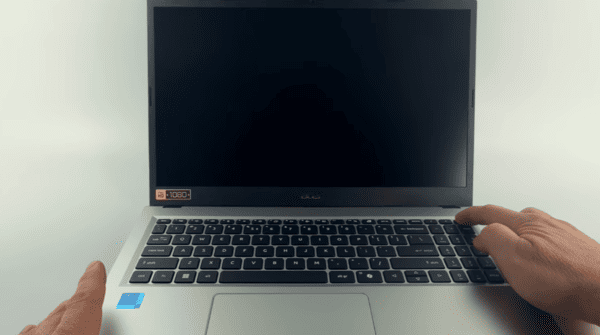
Press and hold the power button for at least 10–15 seconds until the device shuts down completely
Disconnect the power adapter and, if possible, remove the battery
Press and hold the power button again for 10–15 seconds to discharge residual power
Reconnect the power supply and battery, then turn on your laptop
A hard reboot often clears temporary glitches that may be preventing Windows from booting
Step 2: Disconnect External Devices
External peripherals like USB drives, external hard drives, printers, and mice can sometimes interfere with the boot process:
Remove all connected USB devices and peripherals
Turn on your Acer laptop
If the system boots normally, reconnect devices one by one to identify the problematic device
This simple step can resolve conflicts caused by external hardware
Step 3: Boot into Safe Mode
Safe Mode starts Windows with only essential drivers, allowing you to troubleshoot software issues:
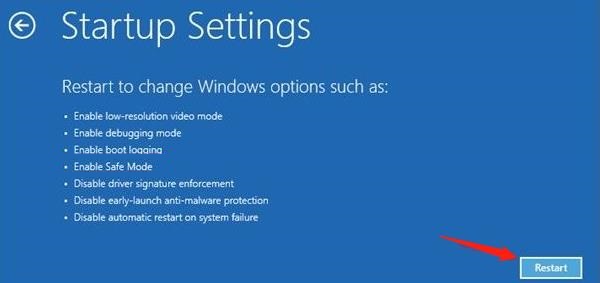
Force Windows into Automatic Repair by turning your laptop off and on 2–3 times during boot
Troubleshoot → Advanced Options → Startup Settings → Restart
After restart, press F4 or 4 to enter Safe Mode
Uninstall recently installed programs or drivers that might be causing the screen issue
Run system maintenance tools like disk cleanup or antivirus scans to remove problematic files
Step 4: Perform System Repair
If Safe Mode doesn't solve the problem, repair Windows system files:
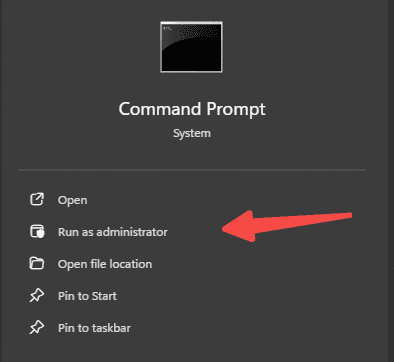
Access Advanced Options → Command Prompt from Automatic Repair
Run the System File Checker:
sfc /scannow
This scans for and repairs corrupted system files
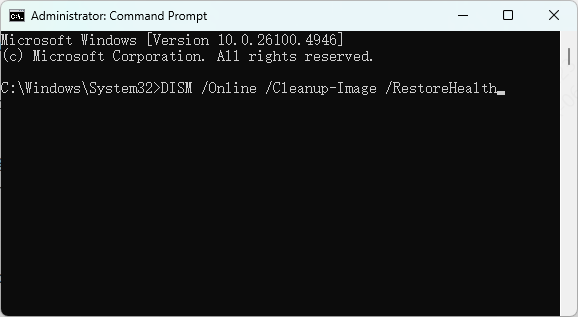
If issues persist, use DISM to fix the system image:
DISM /Online /Cleanup-Image /RestoreHealth
These commands can fix underlying software corruption that may be causing the Acer loading screen to freeze
Step 5: Reset or Restore Windows
If repairs don't work, restoring Windows may be necessary:
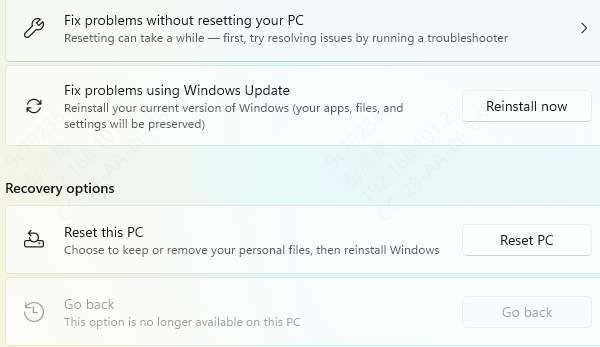
System Restore: Roll back Windows to a previously working point via Advanced Options → System Restore
Windows Reset: Use Reset this PC → Keep my files for a clean reinstall without losing personal data
Important: Always back up your important files before performing a reset or restore
Step 6: Check Hardware Issues
Hardware problems can also cause boot issues:
Reseat RAM modules and check SSD/HDD connections
Run Acer Diagnostics tools (usually available in BIOS or via Acer Care Center) to test hardware
If issues persist, a failing drive or memory module may require replacement
Step 7: Keep Drivers Updated
Update Drivers
Outdated drivers can lead to boot conflicts, freezes, or slow system performance. Here are several methods to ensure your Acer laptop drivers are up-to-date:
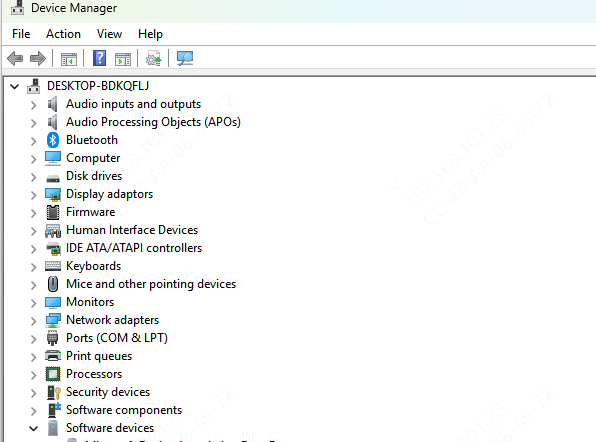
Use Device Manager
Press Windows + X → Device Manager
Locate the device you want to update (e.g., Display adapters, Network adapters)
Right-click → Update driver → Search automatically for drivers
Follow on-screen instructions to complete the update
Download Drivers from Acer Support
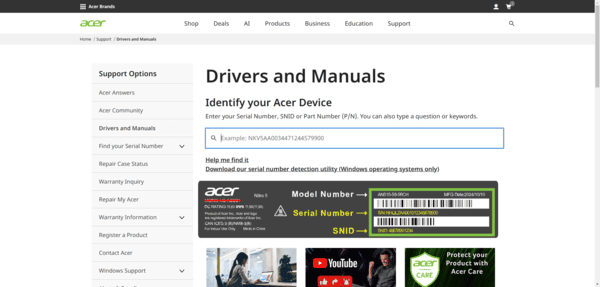
Visit Acer Support
Enter your laptop model and download the latest drivers for graphics, chipset, and peripherals
Install the downloaded drivers manually, following the provided instructions
Use Driver Talent X
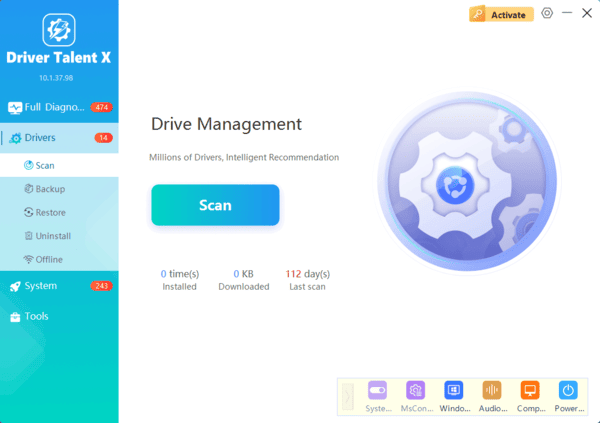
Tools like Driver Talent X simplify driver updates by automatically detecting outdated, missing, or corrupted drivers and installing the correct versions.
Download and install Driver Talent X
Click Scan to detect driver issues
Update or repair any outdated or corrupted drivers
Restart your laptop to apply the changes
Step 8: Update BIOS
The BIOS controls essential hardware initialization during boot, and an outdated BIOS can sometimes cause the loading screen to freeze. Updating your BIOS should be done carefully:
Visit the Acer Support website and search for BIOS updates for your specific laptop model
Follow the instructions carefully to download and install the BIOS update
Ensure your laptop is connected to power and do not interrupt the update process
Updating the BIOS can resolve compatibility issues with new drivers, improve system stability, and sometimes fix persistent boot problems
Conclusion
Acer laptops getting stuck on the loading screen can be caused by software or hardware issues. By following this step-by-step guide—starting with a hard reboot, disconnecting external devices, booting into Safe Mode, performing system repairs, and updating drivers—you can systematically fix the problem. For long-term stability, keep drivers and BIOS updated, and consider using tools like Driver Talent X to maintain your system effortlessly. These steps not only solve the immediate issue but also reduce the chances of similar problems in the future.
