

Firmware problems on an ASUS ROG gaming laptop can lead to boot failures, unstable performance, RGB desynchronization, or hardware components not being detected correctly. These issues often appear after BIOS updates, Windows updates, or incorrect driver installations.
This guide provides detailed solutions to fix firmware-related problems and restore stable performance on your ASUS ROG laptop. Before trying advanced fixes, make sure all your essential system drivers are updated correctly.
Update System Drivers Using Driver Talent X
Outdated or corrupted drivers often cause firmware conflicts. Updating all device drivers ensures that the BIOS, hardware controllers, and system firmware communicate correctly.
Step 1: Download and Install
Click the "Download" button to download the software package.
Run the installer and complete the setup prompts.
Step 2: Scan Your ASUS ROG Laptop
Open Driver Talent X, go to "Drivers" > "Scan", click "Scan".
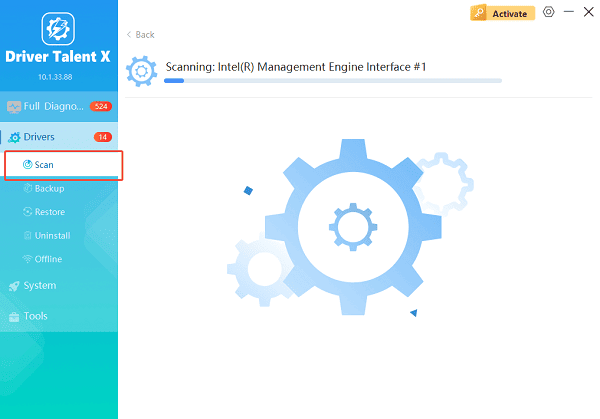
Wait for Driver Talent X to analyze your system. A list of outdated, missing, or corrupted drivers will appear.
Step 3: Update All Required Drivers
Pay special attention to chipset drivers, Intel MEI, AMD platform drivers, and firmware-related components.
Click the "Upgrade" or "Repair Now" button.

Allow the tool to download and install the newest stable versions.
Step 4: Restart Your Laptop
Once updates are installed, restart your laptop so the firmware and operating system can rebuild hardware communication tables.
Driver Talent X also allows you to roll back problematic drivers if needed.
Solution 1: Update the BIOS from ASUS Armoury Crate or MyASUS
A firmware issue may be caused by an outdated or incomplete BIOS update.
How to update BIOS using MyASUS:
Open the Start menu and launch MyASUS.
Go to "System Update", click "Check for Updates".
Look for BIOS updates marked as Recommended.
Download and apply the update.

Restart your laptop to complete installation.
Update BIOS using Armoury Crate:
Open Armoury Crate. Go to the Update Center section.
Install all available firmware and BIOS updates.
Follow on-screen instructions and allow your laptop to reboot.
If the update fails, do not interrupt the process. Restart only when the system instructs you to.
Solution 2: Reset BIOS to Default Settings
Incorrect BIOS settings can cause boot issues or unstable firmware behavior.
Reset BIOS on ASUS ROG:
Shut down your laptop completely.
Press the power button and immediately tap F2 repeatedly to open BIOS.
Navigate to the "Exit" tab. Select" Load Optimized Defaults" or "Restore Defaults".

Save and exit.
This restores stable firmware settings and fixes conflicts caused by manual adjustments.
Solution 3: Reinstall the Intel ME Firmware (Management Engine)
Intel ME firmware plays a critical role in communication between BIOS and Windows.
Steps:
Download the latest Intel ME driver package from ASUS Support.
Extract the folder and run the installation file.
Restart your laptop when finished.
If ME firmware is corrupted, this reinstall often fixes thermal control issues, fan misbehavior, and instability.
Solution 4: Update Chipset Drivers Manually
Chipset drivers affect how hardware communicates with firmware. If outdated, firmware issues may appear.
How to update chipset drivers:
Visit the ASUS Support page for your exact ROG model.

Download the Intel or AMD chipset driver package.
Run the installer and follow prompts.
Restart your laptop.
Use Driver Talent X if you prefer automatic installation.
Solution 5: Perform an EC (Embedded Controller) Reset
The EC controller manages fans, power, RGB lighting, and firmware communication.
EC reset steps:
Shut down your laptop.
Disconnect the power adapter.
Hold the power button for 15 seconds.
Reconnect the power adapter and boot the system.
This clears firmware cache stored in the embedded controller.
Solution 6: Reflash BIOS Using ASUS EZ Flash (Advanced)
If firmware corruption persists, a clean BIOS reflash may fix it.
Steps:
Download the BIOS update file for your model from ASUS Support.

Copy the BIOS file to a USB drive.
Restart and enter BIOS using F2.
Go to the "Tool" tab. Open "ASUS EZ Flash Utility".
Select your BIOS file and proceed with flashing.
Wait for the process to finish without powering off.
This method replaces corrupted firmware blocks.
Solution 7: Roll Back to a Previous BIOS Version
If a new BIOS update created instability, reverting to an earlier version can resolve it.
How to downgrade BIOS:
Download an older BIOS from ASUS Support.
Use EZ Flash to install it following the same method above.
Restart the laptop.
Only downgrade if recommended by ASUS or if the update is known to cause issues.
Solution 8: Perform a Clean Windows Installation (Last Resort)
If all firmware and driver methods fail, a clean Windows installation may fix persistent corruption.
Steps:
Back up all important files.
Create a Windows 11 installation USB using the Media Creation Tool.
Boot from the USB drive.
Perform a clean install.
Install all drivers using Driver Talent X or ASUS Support.
Final Thoughts
Firmware problems on ASUS ROG gaming laptops are usually caused by corrupted drivers, incomplete BIOS updates, or unstable system configurations. Start by updating drivers through Driver Talent X, then move on to other methods.
With the solutions above, you should be able to restore stable performance and eliminate firmware-related issues on your ASUS ROG gaming laptop.
