

ASUS ROG laptops are designed for high-performance gaming, but their performance still depends heavily on correct system configuration, updated drivers, and optimized settings. If your ROG laptop feels slower than expected, shows inconsistent FPS, or struggles to run modern titles, a proper setup and optimization routine can significantly improve the overall gaming experience.
This guide explains essential optimization steps, beginning with updating all critical system drivers using Driver Talent X.
Update Drivers with Driver Talent X
Outdated graphics, chipset, network, or storage drivers can cause FPS drops, overheating, input lag, crashes, and poor overall gaming performance. Before fine-tuning your ASUS ROG laptop, ensure all system drivers are fully updated.
Download and Install:
Click the "Download" button to download the software package.
Double-click the setup file and follow the on-screen instructions.
Scan Your System Drivers:
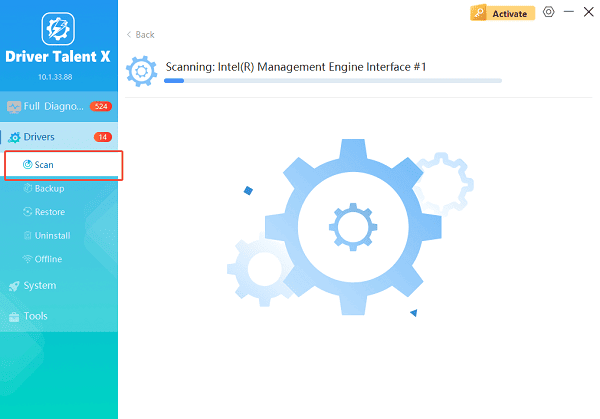
Launch the application and go to "Drivers" > "Scan", click "Scan".
The tool will check your system for outdated, missing, or corrupted system drivers. Wait for the scan to complete.
Update Graphics Drivers:
After the scan is complete, the software will display a list of all drivers that need attention. Click the necessary drivers and click the "Upgrade" or "Repair Now" button.
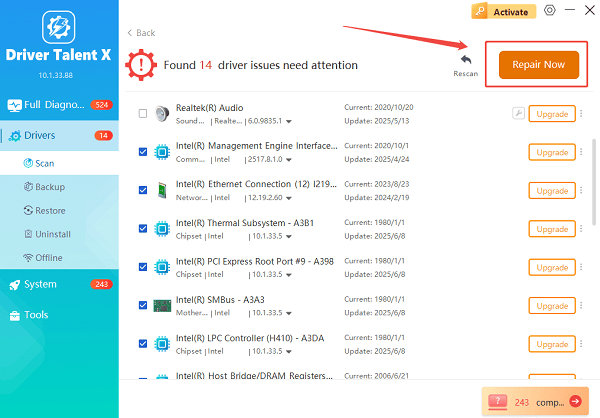
Driver Talent X will reliably download the latest drivers and execute a clean installation, critical for performance enhancements and stability fixes.
Restart your computer:
Restart your ASUS ROG laptop to apply the new driver configurations.
Once all drivers are updated, continue with the performance-enhancing steps below.
1. Update ASUS ROG System Firmware
Armoury Crate controls performance profiles, lighting, fan tuning, and system diagnostics.
How to Update Armoury Crate:
Open Armoury Crate from the Start menu.
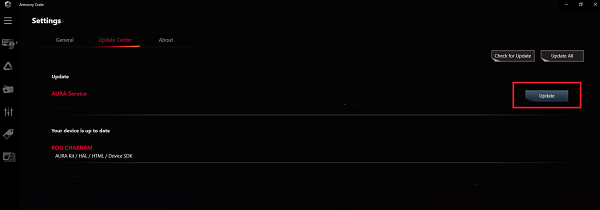
Navigate to the "Updates" section.
Install all pending device, system, and firmware updates.
Restart the laptop after updates complete.
This ensures that thermal tuning, GPU switching, and other features work correctly.
2. Select the Best Performance Mode
ASUS ROG laptops support several performance profiles.
Enable Turbo Mode:
Open Armoury Crate.
Go to Device.
Select the "Performance" tab.
Switch to "Turbo Mode" for gaming sessions.
Turbo Mode increases GPU power, CPU frequency, and fan speeds for maximum performance.
3. Enable GPU MUX Switch for Higher FPS
Many ASUS ROG laptops feature a hardware MUX switch that allows direct GPU output, improving performance by 10 to 20 percent.
How to Enable the MUX Switch:
Open Armoury Crate.
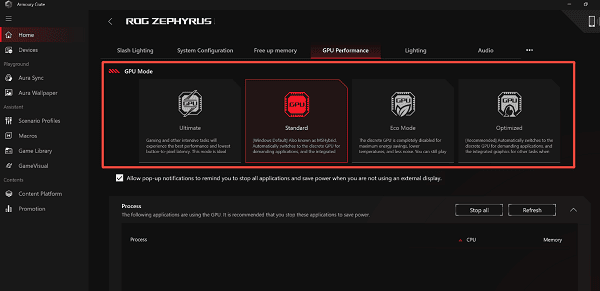
Go to the "System Configuration" section.
Switch GPU Mode to "Standard".
Restart your device to apply the change.
This routes the display directly to the NVIDIA GPU.
4. Optimize NVIDIA Control Panel Settings
For ROG laptops with NVIDIA GPUs, optimizing GPU settings can significantly stabilize performance.
Recommended Settings:
Open NVIDIA Control Panel.
Select "Manage 3D Settings".
Set "Power Management Mode" to" Prefer maximum performance".
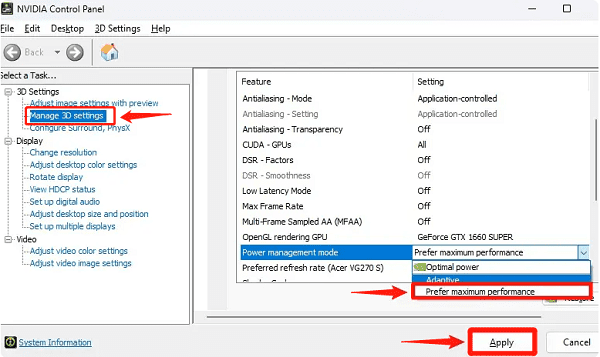
Enable "Low Latency Mode".
Turn on G-Sync if supported by your display.
Set Texture Filtering to High performance.
5. Keep Windows 10/11 Updated
Windows updates often include gaming optimizations and stability fixes.
Update Windows:
Open Settings.
Go to "Update & Security" > "Windows Update".
Click "Check for updates".
Install all recommended updates.
6. Optimize ASUS ROG Fan and Thermal Settings
High temperatures reduce game performance. Adjusting fan curves helps maintain stable FPS.
Configure Fan Curves:
Open Armoury Crate.
Select Fan Control.
Choose "Performance" or "Turbo curve".
Apply your selected configuration.
For long gaming sessions, Turbo ensures better temperature control.
7. Disable Background Apps and Startup Items
Unnecessary background apps consume RAM and CPU resources.
Disable Startup Apps:
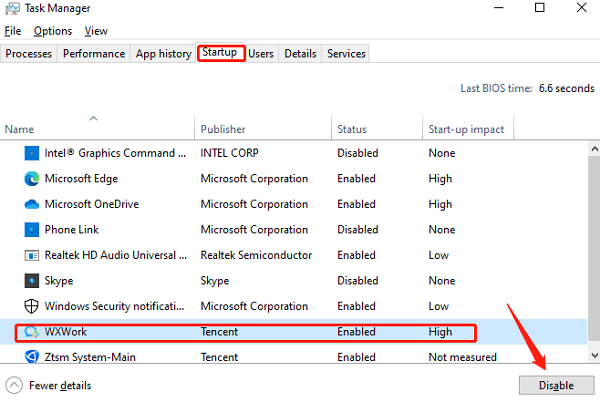
Press Ctrl + Shift + Esc to open Task Manager.
Go to the "Startup" tab.
Disable apps that are not essential.
Turn Off Background Apps:
Open Settings.
Go to Apps.
Select Apps & Features and uninstall unused software.
8. Use an External Cooler or Cooling Pad
ROG laptops generate considerable heat during gaming. Using a cooling pad can help maintain sustained performance by lowering internal temperatures by several degrees.
9. Adjust In-Game Graphics Settings
If you are experiencing FPS drops or stuttering, lowering certain demanding settings can help.
Recommended Adjustments:
Reduce shadow quality.
Lower reflections and anti-aliasing.
Change texture quality only if VRAM is limited.
Turn off motion blur and film grain.
10. Enable SSD Optimization
Slow storage reduces game loading speed and system responsiveness.
Enable TRIM:
Open Command Prompt as administrator.
Enter: fsutil behavior query DisableDeleteNotify
If disabled, run: fsutil behavior set DisableDeleteNotify 0
This ensures optimal SSD performance.
11. Clean Dust and Maintain Ventilation
Dust buildup inside the cooling system reduces airflow and increases temperatures.
If the laptop is 1 to 2 years old, consider cleaning the internal fans or having it professionally serviced.
Final Thoughts
An ASUS ROG laptop can deliver its best performance only when its drivers, firmware, and gaming settings are properly configured. Start by updating all drivers with Driver Talent X, optimize Armoury Crate settings, adjust GPU configurations, and ensure thermal management is efficient. These steps help provide smoother gameplay, higher FPS, and a more stable gaming environment.
