

Gaming with a Corsair Ironclaw is a dream—precise clicks, comfortable grip, and smooth gameplay. But when your mouse won't connect via Bluetooth, that dream can quickly turn into frustration. Luckily, most connection issues are caused by minor hiccups, settings conflicts, or outdated drivers. With the right steps, you can get your Ironclaw back online in no time. Let's dive into the fastest ways to fix Bluetooth problems.
Quick Basic Checks
Power & Battery: Make sure your Ironclaw is switched on and fully charged. Low battery can cause intermittent connections or prevent pairing entirely
Distance & Obstructions: Keep the mouse within 10 meters of your PC. Remove any obstacles like metal objects, microwaves, or Wi-Fi routers that might interfere with Bluetooth signals
Restart Everything
Turn your Ironclaw off and then back on
Restart your computer
Try pairing again
Re-Pair the Mouse
If your mouse has old pairing data, Windows may get confused. A fresh start often solves the issue:
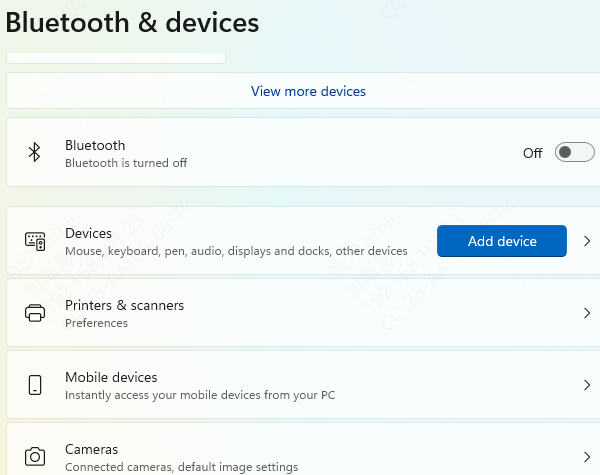
Open Bluetooth settings on your PC: Settings → Devices → Bluetooth & other devices
Find your Ironclaw → Remove device
Put your mouse into pairing mode
Click Add Bluetooth or other device → Bluetooth → select your mouse to reconnect
Update Mouse Firmware
Corsair often releases firmware updates that improve stability and compatibility:
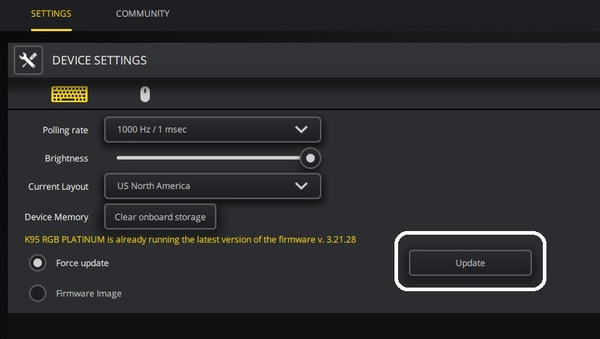
Open Corsair iCUE software
Select your Ironclaw mouse
Check for firmware updates and follow the instructions to install them
Restart your mouse afterward
Update System Drivers
Outdated or missing drivers are a major cause of Bluetooth headaches. Here's how to handle it:
Option 1: Device Manager
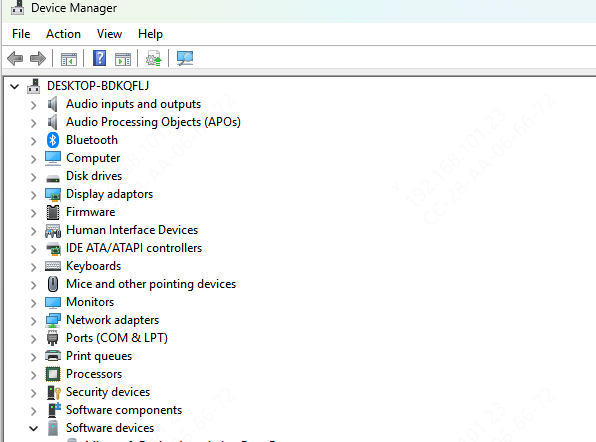
Open Device Manager → Expand Bluetooth → Right-click your adapter → Update driver → Search automatically
Option 2: Driver Talent X (Recommended)
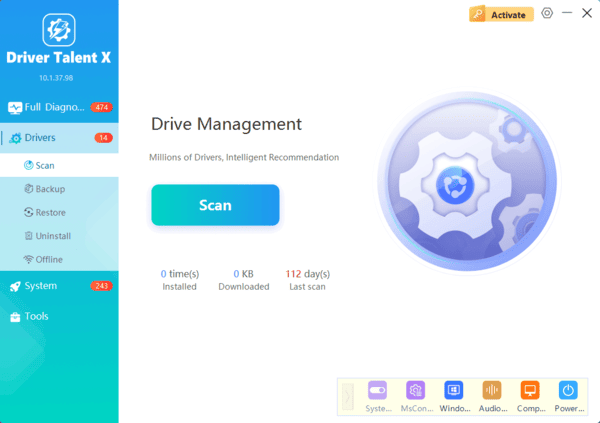
Download and install Driver Talent X
Click Diagnose to scan for missing or outdated drivers, including Bluetooth drivers
Click Repair or Update All
Restart your computer
Option 3: Windows Update
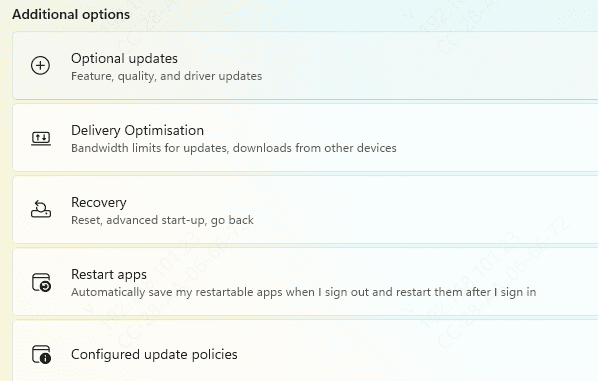
Sometimes Windows Update delivers necessary driver fixes: Settings → Update & Security → Windows Update → Check for updates
Option 4: Manufacturer Website
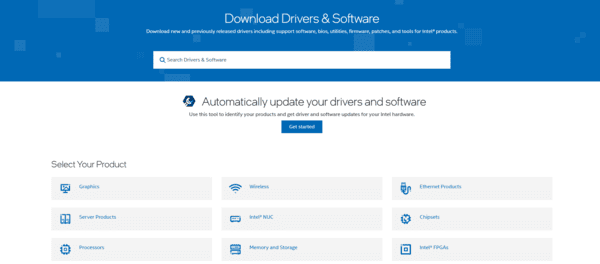
Alternatively, visit your PC or motherboard manufacturer's site to download the latest Bluetooth and chipset drivers
Optimize Bluetooth Settings
A few Windows settings can make or break your pairing:
Ensure your PC is discoverable: Settings → Devices → Bluetooth → More Bluetooth options → Allow devices to find this PC
Turn off Airplane Mode
Disconnect other unnecessary Bluetooth devices that could interfere with pairing
Reduce Physical Interference
Keep it closer to your PC
Test pairing in a different room or location to rule out interference
Avoid obstacles like metal objects, walls, or microwaves between your mouse and receiver
Even small adjustments can drastically improve stability
Advanced Troubleshooting
If the mouse still won't cooperate:
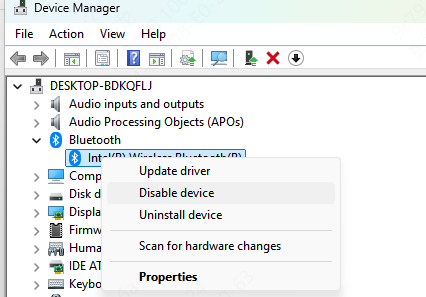
Reset the Bluetooth Module: Device Manager → Right-click Bluetooth adapter → Uninstall device → Restart PC. Windows will reinstall the driver
Test on Another PC: This confirms whether the problem is the mouse itself or your system
Conclusion
Corsair Ironclaw Bluetooth issues are usually caused by low battery, outdated firmware, driver conflicts, or signal interference. By following these steps—basic checks, re-pairing, firmware updates, driver updates with Driver Talent X, and optimizing your Bluetooth settings—you can solve most issues quickly. Routine maintenance keeps your mouse performing at its best, giving you the reliability and precision you expect from Corsair for every gaming session.
