

Keeping your Dell Optiplex 7010 drivers updated is essential for maintaining optimal system performance, stability, and security. Outdated or missing drivers can lead to system crashes, poor performance, and hardware malfunctions. This guide will walk you through the various methods to update drivers for your Dell Optiplex 7010, ensuring that your system runs smoothly.
Method 1: Using Dell Support Website for Manual Updates
Dell offers a dedicated support website where you can manually download and install the latest drivers for your Dell Optiplex 7010. Here's how you can do it:
Step 1: Visit the Dell Support Website
Go to the Dell Support website on your browser
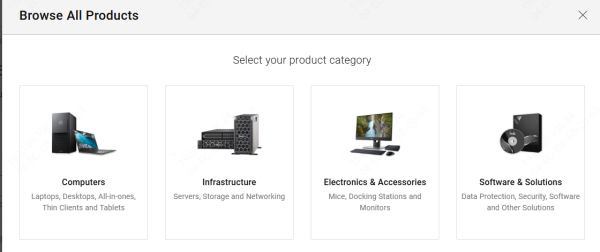
Step 2: Enter Your Service Tag or Model Number
You can either enter your Dell Optiplex 7010 service tag or manually select your system model from the list
Step 3: Navigate to the "Drivers & Downloads" Section
Once you've selected your model, navigate to the "Drivers & Downloads" tab
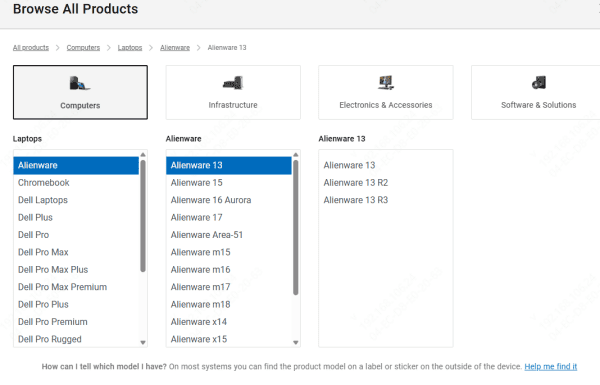
Step 4: Select Your Operating System
Choose your operating system from the dropdown menu to ensure that the drivers are compatible
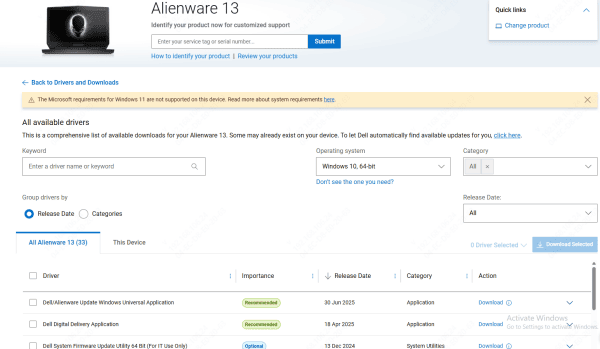
Step 5: Download and Install the Latest Drivers
Browse through the available drivers and download the latest versions for essential components like the chipset, graphics card, audio system, network adapter, and more. Click on the "Download" button for each driver, then follow the on-screen instructions to install
Method 2: Using Dell Command | Update Tool
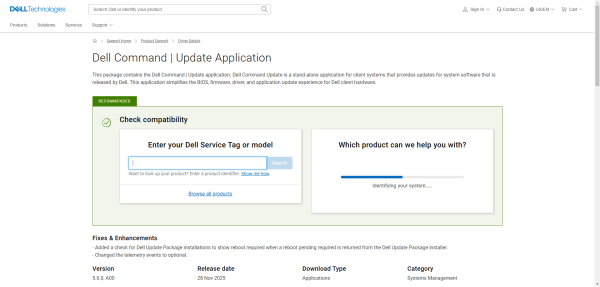
Step 1: Download and Install Dell Command | Update
Go to the Dell Command | Update page on Dell's support website and download the installer
Run the installer and follow the on-screen instructions to complete the setup
Step 2: Open the Tool and Scan for Updates
Launch the Dell Command | Update tool
The software will automatically scan your system for outdated drivers
Step 3: Select the Recommended Driver Updates
Once the scan is complete, the tool will display a list of available driver updates
Click on the "Install All" button to install the latest updates
Step 4: Restart Your System
After the updates are installed, restart your Dell Optiplex 7010 to apply the changes
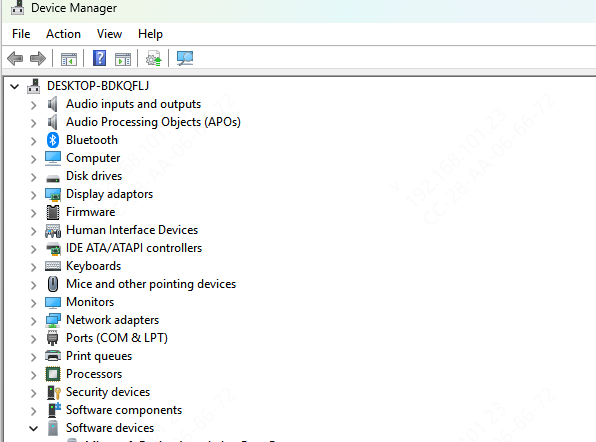
Method 3: Updating Drivers Using Device Manager
Step 1: Open Device Manager
Step 2: Find the Device You Want to Update
Step 3: Right-click on the Device and Select "Update Driver"
Step 4: Choose "Search Automatically for Updated Driver Software"
Step 5: Restart Your System
Method 4: Using Driver Talent X
If manual methods feel like a hassle, using an automated driver update tool can save you time. Driver Talent X is a reliable tool that automatically detects and installs the latest drivers for your system.
Step 1: Download and Install Driver Talent X
Go to the Driver Talent X website and download the installer. Follow the on-screen instructions to install the tool
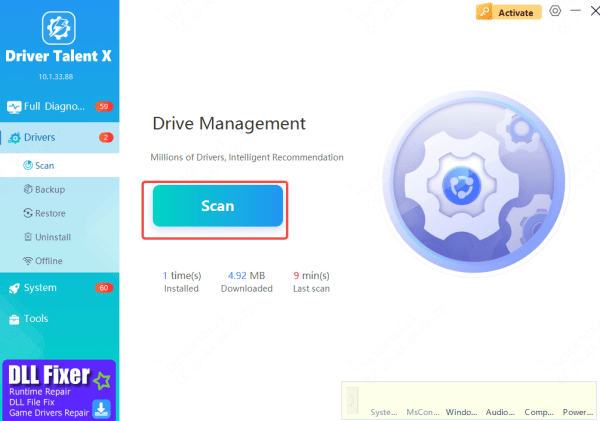
Step 2: Run a System Scan
Open Driver Talent X and click on Drivers → Scan
The software will perform a comprehensive scan of your system to detect outdated drivers
Step 3: Select the Drivers to Update
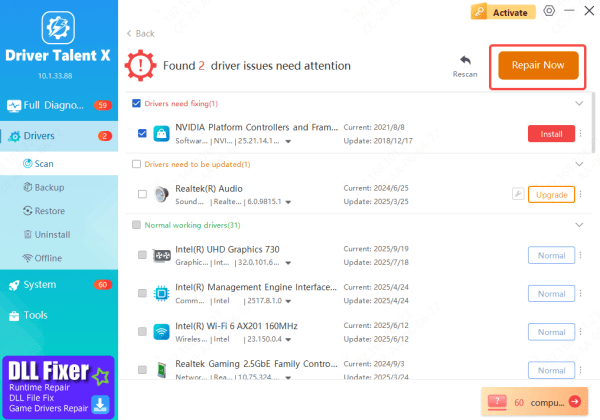
Once the scan is complete, Driver Talent X will display a list of drivers that need updating
Select the relevant drivers, including graphics, audio, and chipset drivers
Step 4: Click on "Repair Now"
Click on the Repair Now button to download and install the latest drivers automatically
Step 5: Restart Your System
After the updates are installed, restart your computer to finalize the driver installations
Conclusion
Keeping your Dell Optiplex 7010 drivers up to date is essential for maintaining system performance, security, and compatibility with the latest software. Whether you prefer manual updates, using Dell Command | Update, or an automated tool like Driver Talent X, updating your drivers is a simple yet crucial task. Regular updates ensure that your system runs efficiently and helps you avoid performance problems and compatibility issues.
