

Upgrading the graphics on a laptop can significantly improve performance for gaming, video editing, and other graphics-intensive tasks. However, unlike desktops, laptops often have limitations due to integrated or non-replaceable GPUs.
Before attempting any upgrade, it is essential to ensure that all your system drivers, especially graphics drivers, are up to date. Using Driver Talent X is a safe and efficient way to accomplish this.
Understanding Laptop Graphics Upgrade Options
1. Integrated GPU vs. Dedicated GPU
Integrated GPU: Built into the CPU, common in most laptops. Cannot be upgraded physically.
Dedicated GPU: Installed as a separate component in some gaming or high-end laptops. May be replaceable or upgraded through MXM modules (rare and model-dependent).
2. External GPU (eGPU)
Some laptops support eGPU setups via Thunderbolt 3 or USB-C.

eGPUs allow you to connect a desktop-class graphics card externally.
Ensure your laptop supports external graphics and has the required ports.
3. Upgrade Laptop Model
If your laptop uses a non-upgradable GPU, the only way to improve graphics performance significantly may be to upgrade to a newer laptop model with better GPU hardware.
Optimize Current Graphics Performance
Even if physical upgrades are limited, you can maximize performance by:
Updating Graphics Drivers using Driver Talent X (covered in Step 1).
Adjusting Graphics Settings in NVIDIA Control Panel or AMD Adrenalin software to balance performance and quality.
Enabling "High Performance" Power Plans in Windows.

Cleaning System Memory and Reducing Background Processes to free GPU resources.
Using Game Mode in Windows 10/11 to prioritize graphics performance for applications.
Update Graphics Drivers
Outdated drivers are a common reason for poor performance and compatibility issues. Updating them is the first step before considering any hardware changes.

Download and Install:
Click the "Download" button to download the software package.
Run the installer and follow on-screen instructions. Choose the installation folder and complete the setup.
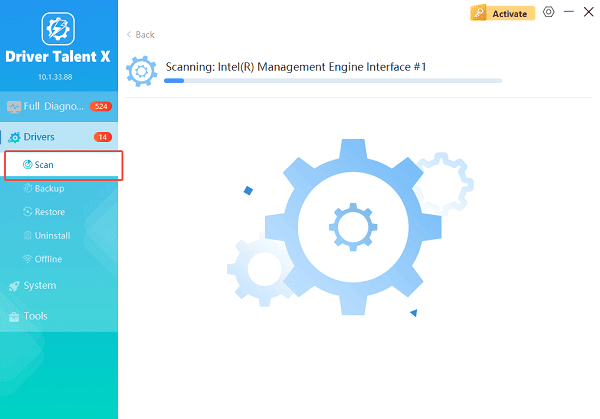
Scan your system:
Launch the program from your desktop shortcut or Start menu, go to "Drivers" > "Scan", click "Scan".
Driver Talent X will detect outdated, missing, or corrupted graphics drivers for NVIDIA, AMD, or Intel GPUs.
Update the graphics driver:
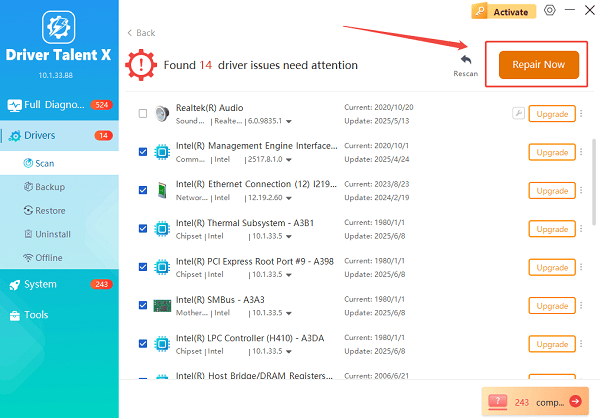
When the scan completes, locate your graphics driver in the results list. You will see information such as version number and status.
Select the "Upgrade" button next to your GPU driver or click "Repair Now" to update all necessary drivers at once. Driver Talent X will automatically download and install the current driver without requiring manual configuration.
Restart Your Laptop:
Reboot your laptop to apply updates correctly.
Updating drivers ensures that your laptop can take full advantage of any graphics improvements, whether through internal or external solutions.
Verify Graphics Upgrade or eGPU Installation
Check Device Manager to confirm that your graphics device is recognized.
Run GPU-Z or similar software to verify that your laptop is using the updated GPU or eGPU.
Test Performance using benchmarking tools or games to ensure stability and improved frame rates.
Tips for Safe Graphics Upgrades
Always backup your system before updating drivers or installing hardware changes.
Ensure your laptop has adequate cooling for new GPUs or performance improvements.
Check manufacturer compatibility for any physical GPU replacements or eGPU setups.
Keep Driver Talent X installed to maintain updated drivers and prevent future conflicts.
Conclusion
While most laptops have limited options for physically upgrading graphics, using tools like Driver Talent X ensures that your current GPU performs at its best. Whether updating drivers, connecting an eGPU, or optimizing system settings, these steps help you maximize graphics performance safely. Understanding your laptop's upgrade possibilities ensures you make informed decisions without risking hardware damage.
