

Keeping your HP EliteBook 840 G10 up to date with the latest drivers is essential to ensuring that your system performs at its best. Regular driver upgrades help boost system stability, resolve issues, and improve compatibility with Windows 11. This guide will take you through the various methods to update drivers on your HP EliteBook 840 G10, so you can enjoy optimal performance and avoid any hardware or software hiccups.
Why You Need to Upgrade Your Drivers
Performance Improvements: Newer drivers help improve the functionality of hardware components like the display, keyboard, trackpad, and more
Security Enhancements: Driver updates often include patches for vulnerabilities that could otherwise expose your system to malware or attacks
System Stability: Outdated or faulty drivers can lead to system crashes, device malfunctions, and errors. Updating helps prevent these issues
Compatibility: New drivers ensure that your system is fully compatible with new software and Windows 11 updates, enhancing overall efficiency
Method 1: Updating Drivers via Windows Device Manager
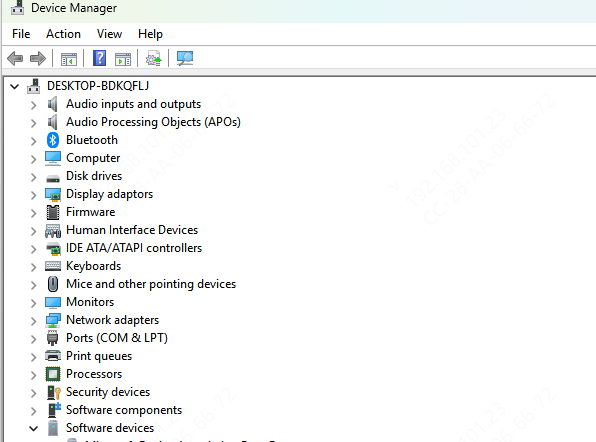
Press Windows + X and select Device Manager
Expand the categories of hardware (e.g., Display adapters, Network adapters)
Right-click on the device you want to update (e.g., graphics card, audio driver)
Click Update Driver and then select Search automatically for updated driver software.
Windows will search for the latest driver and prompt you to install it if available
After the installation, restart your laptop to apply changes
Method 2: Downloading Drivers Manually from HP Support Website
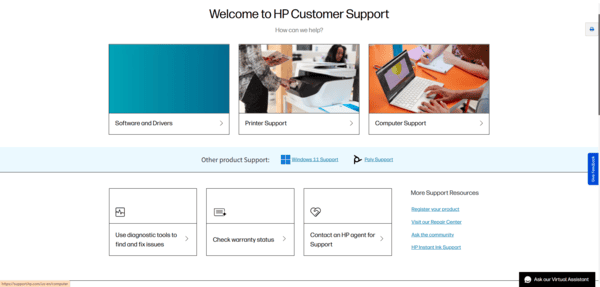
For a more manual approach, you can download drivers directly from the official HP Support website.
Visit the HP Support Website
Enter your laptop model number, HP EliteBook 840 G10, in the search box
Select the correct operating system (Windows 11) from the dropdown menu
Browse through the available drivers for components like graphics, audio, network, and more
Download the most recent drivers for each component you need to update
Double-click the downloaded files and follow the on-screen instructions to install the drivers
Restart your laptop once installation is complete
Method 3: Using Driver Talent X (Automated Update)
For a faster, automated solution, Driver Talent X is a great option to update all your drivers in one go. This tool automatically detects outdated, missing, or incompatible drivers and installs the correct versions for your system.
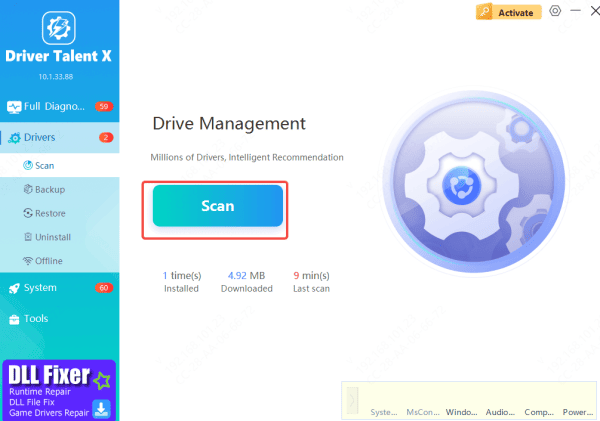
Download and install Driver Talent X from the official website
Open the software and click Scan to detect outdated drivers
After the scan, the software will display a list of drivers that need to be updated
Select the drivers you want to update (e.g., graphics, audio, network) and click Repair Now or Update to start the process
The software will download and install the latest drivers automatically
Once the updates are finished, restart your laptop to ensure the changes take effect
Method 4: Using HP Support Assistant
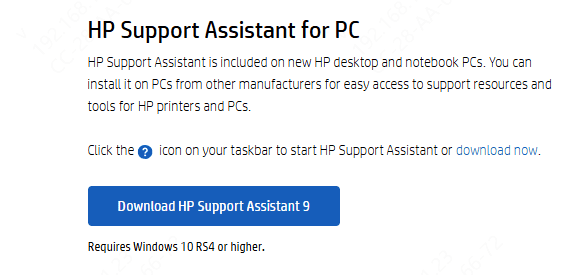
HP Support Assistant is a tool designed to help you manage your HP laptop, including keeping your drivers updated
Open HP Support Assistant from the Start menu
Go to the Updates tab on the dashboard
Click Check for Updates and let the program scan for available updates
If new drivers are available, click Update for each driver that requires updatin
Once the updates are complete, restart your laptop to apply changes
Common Driver Update Issues and Fixes
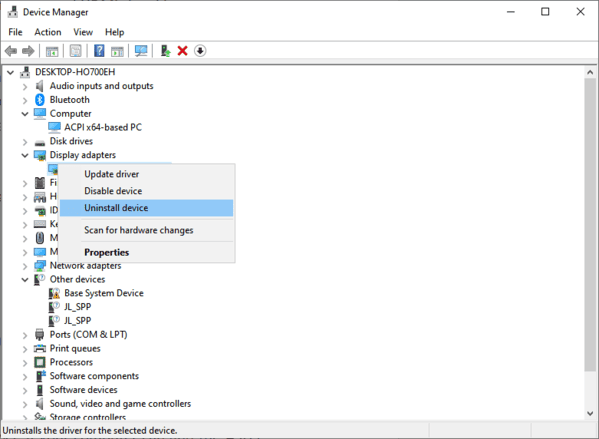
Installation Errors: If a driver fails to install, try uninstalling the existing driver from Device Manager and then reinstalling it manually or through the HP Support Assistant
Hardware Not Working After Update: If a new driver causes your hardware to stop working, you can roll back the driver to the previous version in Device Manager by right-clicking the device, selecting Properties, and choosing Roll Back Driver
Missing Driver: If you can't find a driver for a particular hardware component, visit the official HP website and manually download the driver for your specific hardware model
Conclusion
Regularly updating the drivers on your HP EliteBook 840 G10 is essential to ensure the best performance and a smooth computing experience. Whether you choose to update through Windows Device Manager, HP Support Assistant, or an automated tool like Driver Talent X, keeping your drivers up to date will enhance system stability and overall functionality. If you encounter issues during the update process, refer to the troubleshooting section for solutions. By maintaining up-to-date drivers, you can maximize the lifespan and performance of your laptop.
