

The HP LaserJet P1006 is a reliable monochrome laser printer designed for small offices and home use. However, to ensure it works properly, having the correct driver installed on your computer is crucial. Missing, outdated, or incompatible drivers can lead to problems such as the printer not responding, jobs getting stuck, or certain features not working. This guide will show you how to download, install, and update the HP LaserJet P1006 driver efficiently.
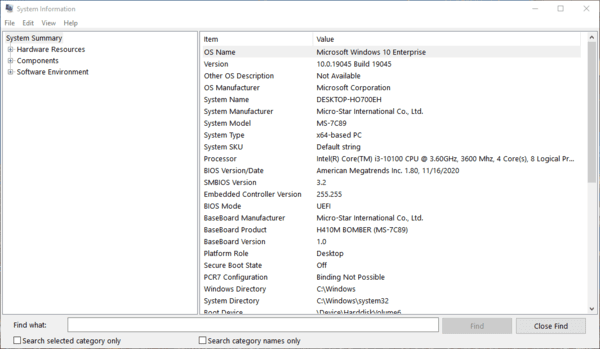
Step 1: Identify Your Operating System and Printer Model
Windows: Right-click Start → Settings → System → About. Note whether it's 32-bit or 64-bit and the exact version (Windows 10 or 11)
Important 2026 Note: The HP LaserJet P1006 is an older model. HP provides the latest driver package (primarily tested on Windows 10), but many users report it works on Windows 11 after a clean install. If you're on Windows 11, download the full package and run it as administrator
Step 2: Download HP LaserJet P1006 Driver from Official HP Website
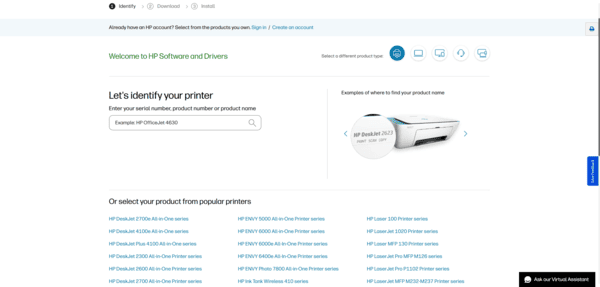
Go to the official HP Support Drivers page
Enter "HP LaserJet P1006" in the search bar and select your exact model
Choose your operating system (Windows 11, Windows 10, etc.) and bit version (64-bit recommended for modern PCs)
Download the full feature driver/software package (recommended for best functionality). Avoid basic drivers unless you only need basic printing
Save the installer to an easy-to-find location (e.g., Downloads folder)
Step 3: Install the HP LaserJet P1006 Driver
Locate the downloaded .exe file and right-click → Run as administrator
Follow the on-screen installation wizard. Accept the license agreement and choose the recommended setup type
When prompted, connect your printer using a USB cable (this model is primarily USB-based; no built-in Wi-Fi)
Allow the installer to detect and configure the printer
Restart your computer after installation completes
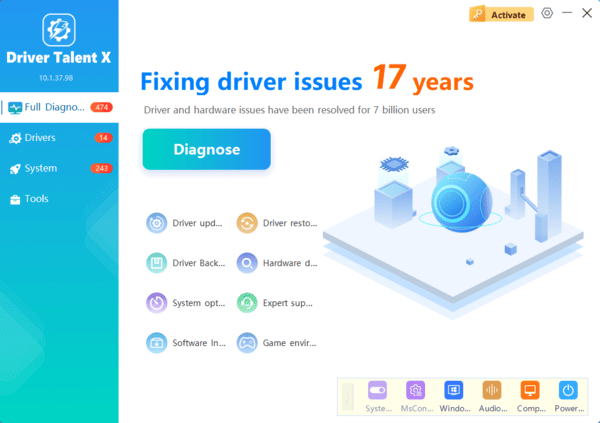
Step 4: Update or Repair Drivers Automatically with Driver Talent X
Manual updates can be tedious, especially with older printers like the P1006. Driver Talent X offers a faster, safer alternative:
Download and install Driver Talent X from its official website
Launch the program and click Scan — it will detect outdated, missing, or corrupted drivers, including the HP LaserJet P1006
Select the HP printer driver and click Update or Repair
Restart your PC to apply the changes
Step 5: Troubleshooting Common HP LaserJet P1006 Driver Issues
Installer won't run — Right-click and select "Run as administrator." Temporarily disable antivirus/firewall
Printer not detected — Use a different USB port/cable, restart both printer and PC, or try running the installer again
Missing features or slow printing — Ensure you installed the full feature package, not the basic driver
Conclusion
Downloading and installing the correct HP LaserJet P1006 driver is essential for stable printing performance. While manual installation works, tools like Driver Talent X make the process faster and safer by automatically detecting and updating drivers, repairing corrupted files, and ensuring full printer functionality. By following this guide, you can maintain reliable printing and avoid frustrating driver-related issues.
