

Lenovo Gaming IdeaPad laptops are designed to deliver solid gaming performance, but out-of-box settings, outdated drivers, or improper system configuration can significantly limit their potential. To achieve smooth gameplay, higher frame rates, and better system stability, proper setup and optimization are essential.
This guide provides detailed, step-by-step instructions, starting with driver updates using Driver Talent X, followed by multiple proven optimization methods.
Step 1: Update All Drivers First with Driver Talent X
Outdated or incompatible drivers are one of the most common reasons for poor gaming performance, FPS drops, overheating, and crashes. Before adjusting any system or graphics settings, updating drivers should be your first step.
Download and Install:
Click the "Download" button to download the latest installer. Save the file to your Lenovo laptop.
Double-click the installer and follow the on-screen instructions. Choose the installation directory and complete the setup process.
Start a System Scan:
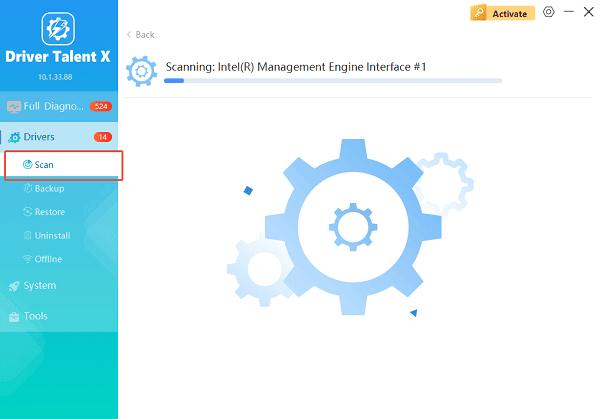
Open the program from the desktop shortcut or Windows Start menu, go to "Drivers" > "Scan", click "Scan".
Driver Talent X will detect outdated, missing, or corrupted drivers, including GPU, CPU chipset, audio, LAN, WiFi, and Bluetooth drivers.
Update All Drivers:
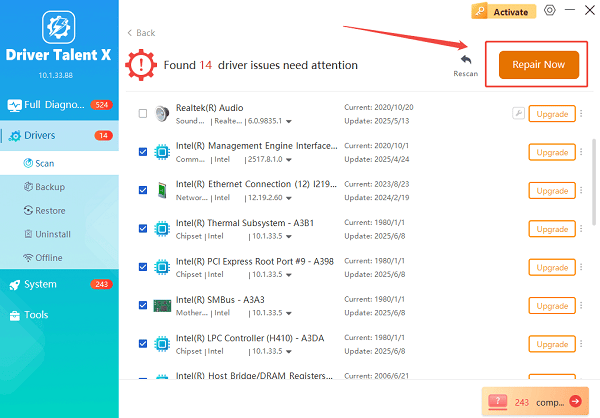
Check the list of drivers that need updates, paying special attention to graphics drivers, chipset drivers, and power management drivers.
Select the "Upgrade" or "Repair Now" button to automatically download and install all recommended versions.
Restart the Laptop:
Wait for the download and installation process to complete.
Restart your laptop to apply all changes.
Keeping drivers up to date ensures optimal compatibility with games, better GPU utilization, and improved system stability.
Step 2: Set Windows Power Mode to Maximum Performance
Windows power settings can restrict CPU and GPU performance if configured incorrectly.
Configure High Performance Power Plan:
1. Open Control Panel.
2. Go to Power Options.
3. Select "High performance".

4. Click Change plan settings and set:
Turn off display: Never (while plugged in)
Put the computer to sleep: Never
This ensures your Lenovo Gaming IdeaPad delivers full processing power during gaming sessions.
Step 3: Optimize NVIDIA or AMD Graphics Settings
Your dedicated GPU control panel plays a critical role in gaming performance.
NVIDIA Graphics Settings:
1. Right-click on the desktop and open NVIDIA Control Panel.
2. Go to "Manage 3D settings". Set:
Power management mode: Prefer maximum performance

Low latency mode: On
Texture filtering – Quality: High performance
3. Apply changes.
AMD Graphics Settings:
1. Open AMD Adrenalin Software.
2. Go to Graphics.
3. Enable:
Radeon Anti-Lag
Radeon Boost (if supported)
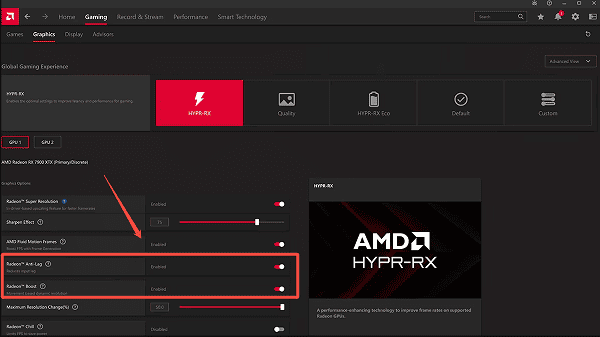
4. Set Graphics Profile to Performance.
Step 4: Enable Lenovo Performance Mode
Lenovo Gaming IdeaPad laptops include built-in performance modes that directly impact system behavior.
Press Fn + Q to cycle through modes.
Select Performance Mode (usually indicated by a red or blue indicator).
Keep your laptop plugged in while gaming to prevent power throttling.
This mode increases fan speed and allows higher CPU and GPU power limits.
Step 5: Disable Unnecessary Startup Programs
Background applications consume CPU, RAM, and disk resources.
How to Reduce Startup Load:
1. Press Ctrl + Shift + Esc to open Task Manager.
2. Go to the Startup tab.
3. Disable non-essential applications such as:
Updaters
Launchers you do not use
Third-party utilities
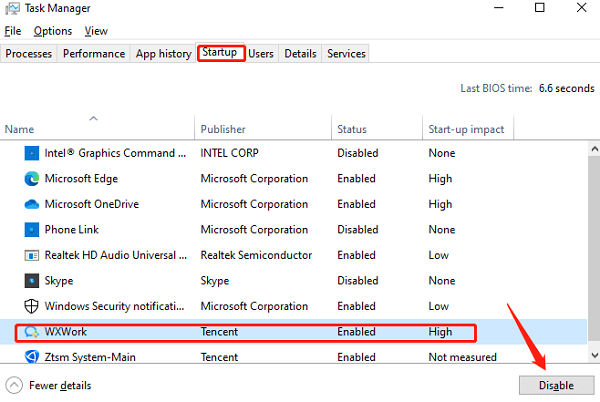
This frees up system resources for gaming.
Step 6: Optimize In-Game Graphics Settings
Even a powerful laptop can struggle if game settings are misconfigured.
Recommended adjustments:
Set resolution to native display resolution.
Lower shadow quality and motion blur.
Disable unnecessary post-processing effects.
Use DLSS or FSR if supported by your GPU.
These changes significantly improve FPS without sacrificing visual quality.
Step 7: Keep Windows and Games Updated
Open Settings > Update & Security > Windows Update.
Click "Check for updates", install all recommended updates.
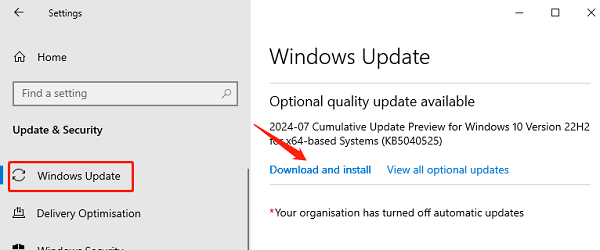
Keep game launchers and titles updated to ensure compatibility with the latest drivers.
Step 8: Monitor Temperatures and Prevent Thermal Throttling
Overheating reduces performance over time.
Best Practices:
Keep ventilation ports clean.
Use a cooling pad if possible.
Avoid placing the laptop on soft surfaces.
Ensure Lenovo Vantage thermal settings are properly configured.
Stable temperatures help maintain consistent gaming performance.
Final Thoughts
Achieving the best performance on a Lenovo Gaming IdeaPad requires more than just powerful hardware. Updating drivers with Driver Talent X, optimizing power and graphics settings, managing background processes, and controlling temperatures all play critical roles. By following this step-by-step setup guide, you can unlock smoother gameplay, higher frame rates, and a more stable gaming experience.
