

The Lenovo Legion 9i is a high-end gaming laptop built for performance, but to unlock its full potential, proper system optimization is essential. Factors such as outdated drivers, incorrect power settings, thermal throttling, and unoptimized GPU configurations can limit gaming performance.
Before adjusting advanced gaming settings, updating all system drivers is the most critical step to ensure stability and compatibility. This guide begins with updating drivers using Driver Talent X, followed by multiple proven methods to optimize the Lenovo Legion 9i for gaming.
Update All Drivers First with Driver Talent X
Keeping your graphics, chipset, CPU, audio, and network drivers up to date is essential for maximizing gaming performance. Driver Talent X automatically scans your system and installs the correct drivers for your hardware.
Download and Install:
Click the "Download" button to download the latest installer. Save the file to your Lenovo Legion 9i.
Double-click the installer and follow the on-screen instructions. Choose the installation directory and complete the setup process.
Start a System Scan:
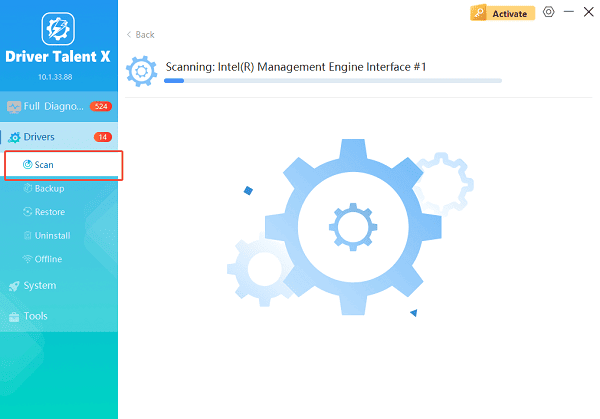
Open the program from the desktop shortcut or Windows Start menu, go to "Drivers" > "Scan", click "Scan".
Driver Talent X will detect outdated, missing, or corrupted drivers, including GPU, CPU chipset, audio, LAN, WiFi, and Bluetooth drivers.
Update All Drivers:
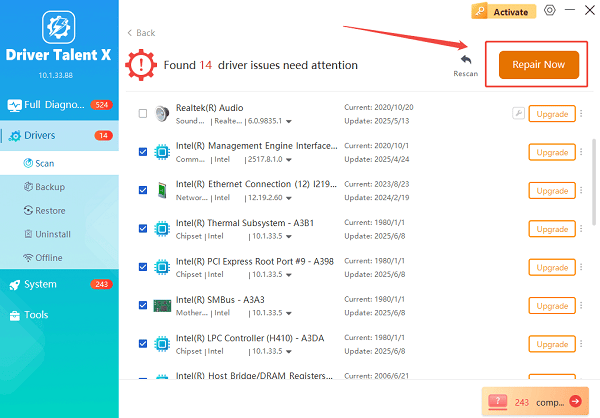
Check the list of drivers that need updates, paying special attention to graphics drivers, chipset drivers, and power management drivers.
Select the "Upgrade" or "Repair Now" button to automatically download and install all recommended versions.
Restart the Laptop:
Reboot your Lenovo Legion 9i to ensure all driver updates are fully applied.
Once your drivers are updated, your system is ready for advanced gaming optimization.
Optimize Power Settings for Maximum Performance
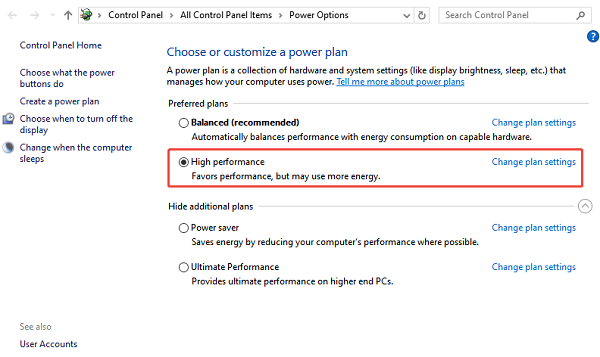
Set Windows Power Mode to High Performance:
Press Windows + I to open Settings.
Go to "System" > "Power & sleep" > "Additional power settings".
Set Power Mode to "High Performance".
Plug in your charger to avoid CPU and GPU power limits.
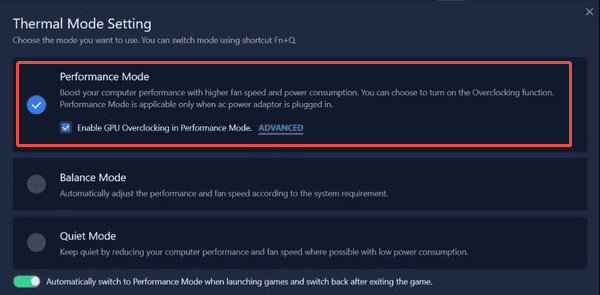
Enable Lenovo Performance Mode:
Open Lenovo Vantage.
Navigate to "Device" > "Power".
Select "Performance Mode" to allow higher CPU and GPU power limits.
Optimize GPU Settings for Gaming
Configure NVIDIA Control Panel (For NVIDIA GPUs):
Right-click on the desktop and select NVIDIA Control Panel.
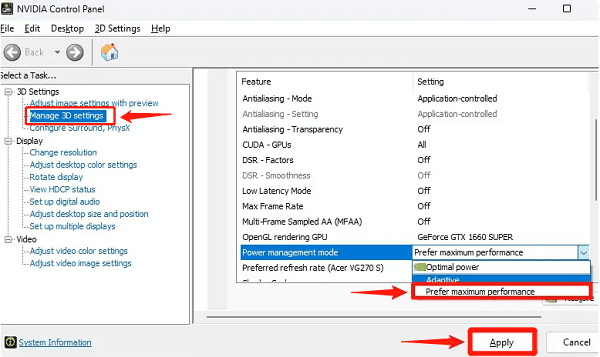
Go to "Manage 3D Settings".
Set Power Management Mode to "Prefer Maximum Performance".
Set Texture Filtering – Quality to High Performance.
Apply the changes.
Force Games to Use the Dedicated GPU:
Open Settings > System > Display > Graphics.
Add your game executable.
Select "High Performance GPU".
Save the settings.
Improve Thermal Performance and Cooling
High temperatures can reduce gaming performance due to thermal throttling.
Steps to Improve Cooling:
Place the laptop on a flat, well-ventilated surface.
Clean air vents regularly to remove dust buildup.
Use Lenovo Vantage to set fans to performance mode.
Consider a cooling pad for extended gaming sessions.
Optimize Windows for Gaming
Disable Background Apps:
Press Ctrl + Shift + Esc to open Task Manager.
Identify unnecessary background processes.
End tasks that consume excessive CPU or RAM.
Enable Game Mode:
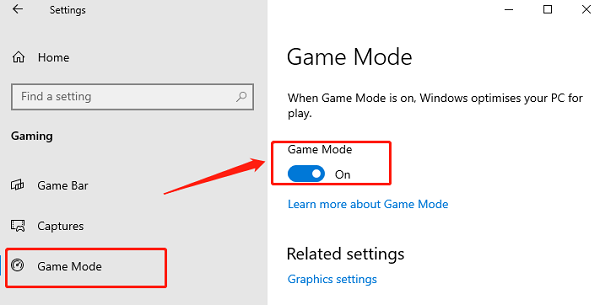
Open Settings > Gaming > Game Mode.
Turn Game Mode on to prioritize gaming resources.
Update BIOS and Firmware (If Needed)
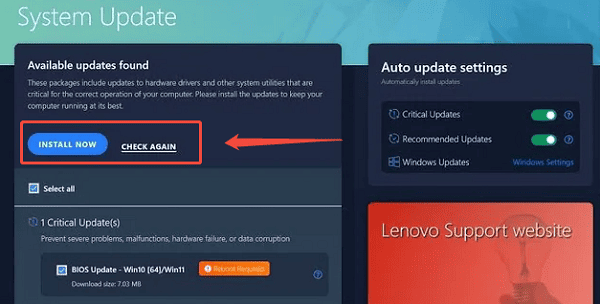
Open Lenovo Vantage.
Check for BIOS or firmware updates.
Install updates carefully and do not interrupt the process.
Restart the system after completion.
Updating BIOS can improve system stability and compatibility with newer games and hardware.
Optimize Storage and Memory
Use an SSD for Games:
Install games on the NVMe SSD for faster load times.
Ensure at least 20 percent free disk space for optimal performance.
Monitor RAM Usage:
Open Task Manager during gameplay.
If RAM usage is consistently high, consider upgrading RAM if supported.
Troubleshooting Performance Issues
Re-scan drivers using Driver Talent X if performance drops suddenly.
Monitor GPU and CPU temperatures to avoid throttling.
Ensure Windows and game patches are up to date.
Reset graphics settings if games crash or stutter.
Conclusion
Optimizing the Lenovo Legion 9i for gaming requires a combination of updated drivers, proper power configuration, GPU optimization, thermal management, and system tuning. By updating all drivers first with Driver Talent X and applying the optimization methods outlined above, you can unlock maximum gaming performance, and maintain long-term system stability. Regular maintenance ensures your Lenovo Legion 9i continues to deliver elite gaming performance.
