

Updating drivers is essential for maintaining your Dell Latitude 7430 in top condition. Drivers act as the bridge between your operating system and hardware, ensuring all your computer components, such as the graphics card, audio system, and network adapters, function correctly. Regular updates keep your system running smoothly, resolve compatibility issues, improve performance, and protect against security vulnerabilities. In this guide, we'll show you how to update your Dell Latitude 7430 drivers using various methods, including manual updates and automated tools.
Method 1: Using Driver Talent X (Recommended)
For an automated, hassle-free experience, Driver Talent X is a fantastic solution. It automatically detects outdated drivers and installs the latest, compatible versions for your system. It's ideal for users who want a quick and efficient way to keep all drivers updated.
Download and Install Driver Talent X: Visit the official website and download Driver Talent X
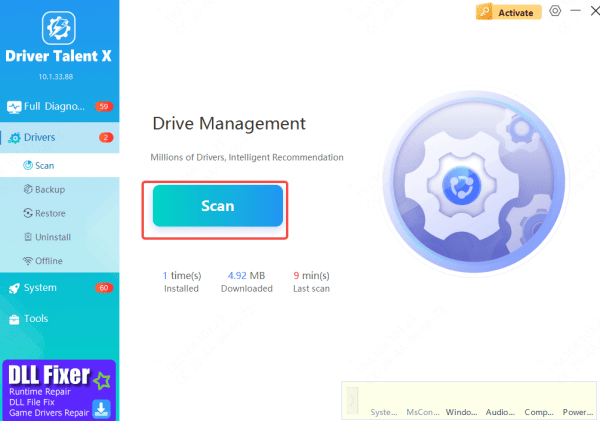
Run a Scan: Open Driver Talent X and go to Drivers → Scan
Update Drivers: Once the scan is complete, it will display all outdated drivers
Click Repair Now or Update to install the latest certified drivers
Restart Your Laptop: After the update, restart your laptop to apply the new drivers and improve system performance
Method 2: Using Device Manager
If you prefer to manually update drivers, you can do so using Windows Device Manager.
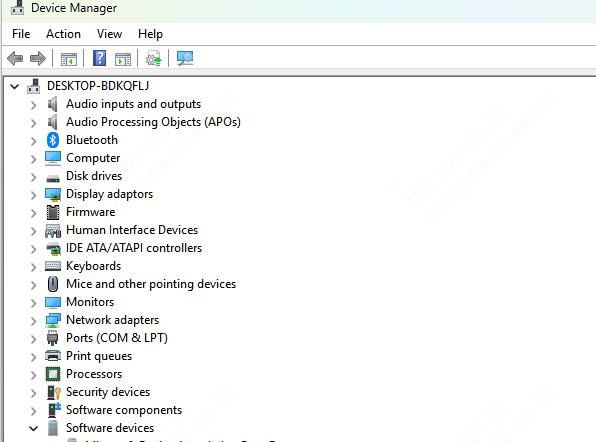
Open Device Manager: Right-click on the Start menu and select Device Manager
Find the device you want to update (for example, display drivers, network adapters, etc.)
Right-click the device and select Update Driver
Choose Search automatically for updated driver software. Windows will search for the latest drivers and install them automatically
Method 3: Using Dell's Official Website
You can also download drivers manually from the Dell Support website, especially if you need a specific version.
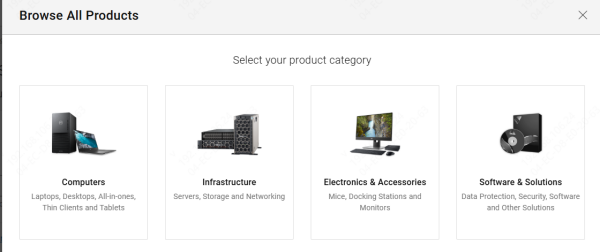
Go to Dell Support: Visit the official Dell Support website
Enter your model: Type in Dell Latitude 7430 or use the service tag located on your laptop to find the right drivers
Select your Operating System: Choose the operating system version you are using (Windows 10, 11, etc.)
Download Drivers: Download the necessary drivers (such as audio, graphics, or network drivers) and follow the instructions to install them
Method 4: Using Dell SupportAssist
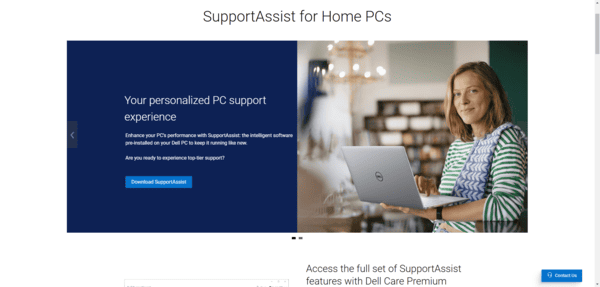
Dell offers an official tool called SupportAssist to help you easily update your drivers. It automatically detects and installs the latest drivers and updates for your system.
Download and Install: Go to Dell's website and download the SupportAssist tool. Run the installer and follow the on-screen instructions to complete the setup
Scan for Updates: Open SupportAssist, and it will automatically scan your Dell Latitude 7430 for any outdated drivers
Install Updates: Once the scan is complete, it will show a list of drivers that need updating. Select the updates and click Install. Follow the prompts to complete the process
Best Practices for Keeping Your Drivers Updated
To ensure your Dell Latitude 7430 continues to perform at its best, follow these best practices:
Regularly Check for Updates: Set a reminder to check for updates every month or so. This will ensure that you're always using the latest drivers
Use Reliable Sources: Always download drivers from trusted sources like Dell's official website or Driver Talent X to avoid issues with fake or incompatible drivers
Backup Your Drivers: Before updating, it's a good idea to back up your current drivers. This will help you roll back to a previous version in case something goes wrong during the update
Don't Over-update: Only update drivers when necessary. If your system is running smoothly, there's no need to update drivers frequently unless there's a bug or compatibility issue
Conclusion
Updating your Dell Latitude 7430 drivers ensures that your laptop remains in top condition. Whether you choose to update manually via Device Manager, download drivers directly from Dell's website, or use an automated tool like Driver Talent X, keeping your drivers current will enhance performance, improve security, and prevent compatibility issues. Regularly updating your drivers is a key part of maintaining your device's longevity and functionality. If you encounter any issues, the troubleshooting steps will help you get back on track quickly.
