

Intel processors deliver excellent performance for everyday computing, gaming, and professional workloads, but achieving their full potential requires more than powerful hardware alone. Factors such as outdated drivers, inefficient power settings, thermal limitations, and incorrect BIOS configurations can all reduce CPU performance and system responsiveness. Before making manual system optimizations, it's recommended to use Driver Talent X to update critical Intel drivers, including chipset, graphics, WiFi, Bluetooth, and Management Engine components. With your system fully updated, you can follow the optimization methods below to maximize the performance of your Intel processor on Windows 10 and Windows 11.
What Is an Intel Processor?
An Intel processor, also known as a CPU, is the main component responsible for executing instructions, running applications, and managing system tasks. Modern Intel CPUs include multiple cores, threads, turbo boost technology, and integrated graphics on many models. Performance depends not only on the CPU itself but also on drivers, BIOS settings, cooling, and Windows configuration.
Enable High Performance Power Plan
Windows power settings can limit CPU frequency to save energy.
How to Change Power Plan:
Press Windows + R, type "control", and press Enter.
Go to Hardware and Sound > Power Options.
Select "High performance" or "Ultimate Performance" if available.
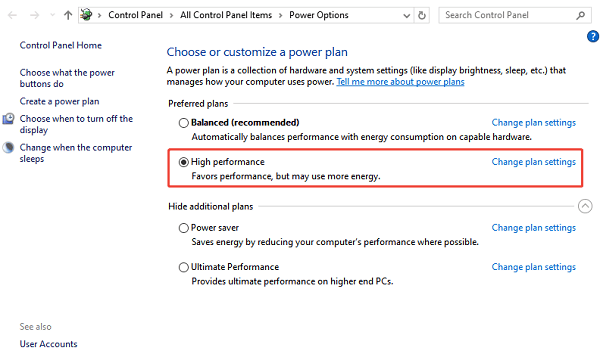
Restart your system.
Optimize Intel Turbo Boost and BIOS Settings
Intel Turbo Boost dynamically increases CPU speed under load, but it can be disabled or limited.
What to Check in BIOS:
Restart your PC and enter BIOS by pressing F2, Delete, or F10 during startup.
Locate CPU or Advanced settings.
Ensure "Intel Turbo Boost" is enabled.
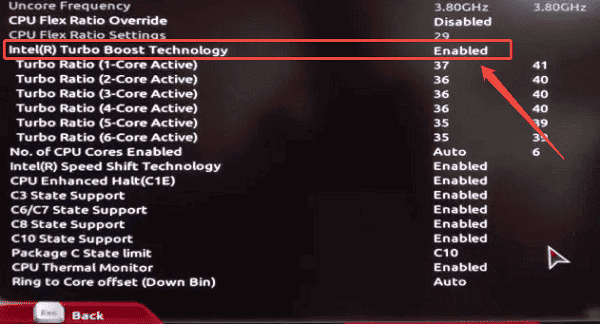
Check CPU power limits (PL1 and PL2) if available and keep them at default or manufacturer-recommended values.
Save changes and exit BIOS.
Improve Cooling and Thermal Management
Intel processors automatically reduce speed when temperatures are too high.
Practical Cooling Tips:
Clean dust from fans and vents.
Ensure laptop air intakes are not blocked.
Replace thermal paste on older desktops if temperatures are consistently high.
Use a laptop cooling pad for sustained workloads.
Lower temperatures allow the CPU to maintain higher boost clocks for longer periods.
Reduce Background Processes and Startup Programs
Excess background apps consume CPU resources.
How to Optimize Startup:
Press Ctrl + Shift + Esc to open Task Manager.
Go to the Startup tab.
Disable unnecessary programs.
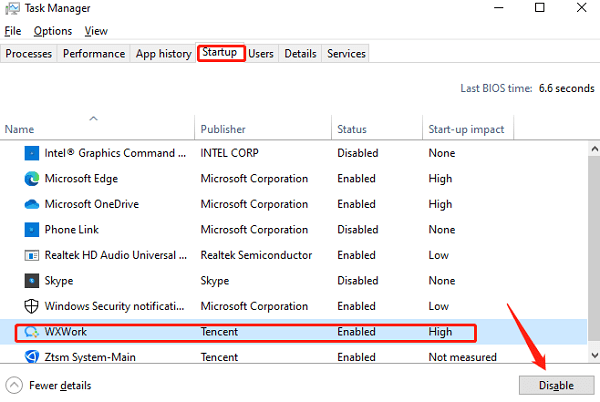
Restart the computer.
Keep Windows Updated
Windows updates often include performance optimizations for Intel processors.
Open Settings > Update & Security > Windows Update.
Click "Check for updates", install all recommended updates.
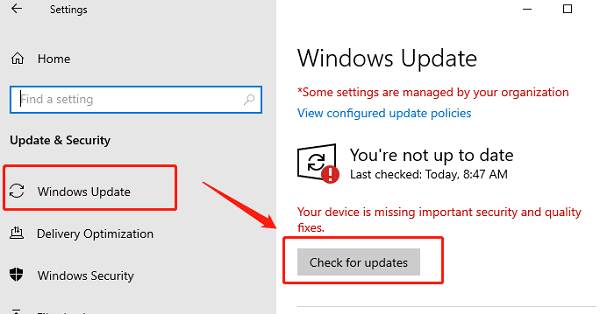
Restart if prompted.
Update Intel Drivers
Keeping Intel chipset, graphics, and management engine drivers up to date is critical. Outdated or incompatible drivers can limit CPU performance, cause instability, or prevent advanced features from working correctly.
Download and Install:
Click the "Download" button to download the installer to your computer.
Run the installer, follow the on-screen instructions, choose the installation path, and complete the setup.
Scan for Driver Issues:
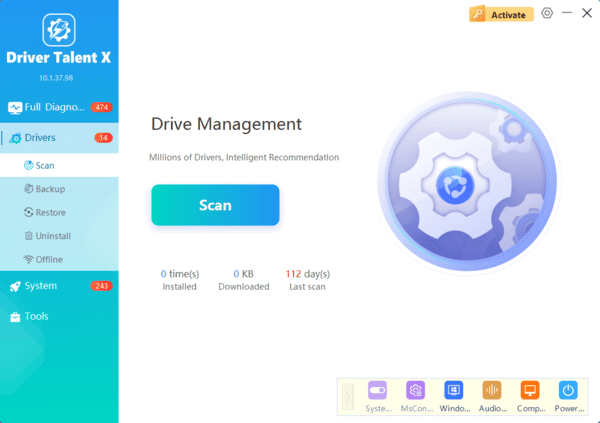
Open Driver Talent X from the desktop shortcut or Start menu and go to "Drivers" > "Scan", click "Scan".
Driver Talent X will detect outdated, missing, corrupted, or incompatible drivers, including Intel graphics, chipset, WiFi, Bluetooth, and audio drivers.
Update All Drivers:
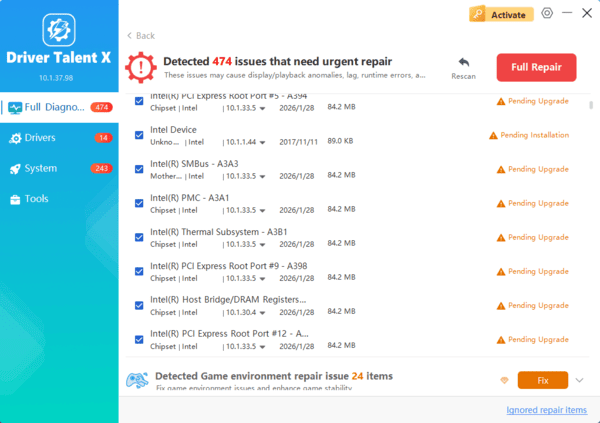
Wait for the scan to complete. The tool will automatically detect outdated, missing, corrupted, or incompatible drivers.
Select the necessary drivers and click the "Upgrade" or "Repair Now" button. Driver Talent X will download the correct driver version for your motherboard and operating system.
Restart Your Computer:
Allow the installation process to finish without interruption.
Restart your computer to ensure the updated drivers are fully applied.
Updating these drivers ensures proper CPU power management, correct communication between hardware components, and better overall system responsiveness.
Use Intel Software Utilities When Applicable
Some Intel systems support tools such as Intel Graphics Command Center or Intel Extreme Tuning Utility.
Use them only if officially supported by your CPU and motherboard.
Avoid aggressive overclocking on laptops, as it may cause overheating or instability.
By combining driver updates with BIOS optimization, thermal management, and Windows tuning, you can safely maximize the performance of your Intel processor for daily work, gaming, or professional tasks.
